How to Create a Second Brain to Write Like You (Part 1)
A 30-minute set-up so Claude never forgets how you write.

Think about how easy it is to talk to your bestie from a decade ago. You don’t explain yourself or give a backstory. You say half a sentence and they already know what you mean. That’s what ten years of shared context does.
Now think about how exhausting it is to explain yourself to someone new. Every conversation starts from scratch. That’s what using AI feels like for most people. Every time you open a new chat, you’re re-explaining your tone, your preferences, what you like, what you hate, how you write. Over and over.
But it doesn’t have to be that way.

Imagine if you could create a version of Claude that could write essays, notes, messages for you in exactly your style. Imagine if it could reference all the sources of content you have read so far or highlight snippets from any learnings you have from your interactions with people you admire.
This is not a far fetched reality anymore.
We have been creating a version of our brain for this newsletter for two months now. Through using Obsidian, a free digital note-taking app, we have created a repository of:
all the articles we wrote in our life so far which Claude Code could reference for writing style
any notes/tweets etc that have been published by us (it scrapes those daily)
all other content on Superlinear Substack as it keeps getting updated
Using this, it has reached a stage where if someday we couldn’t write our Weekly Brief, Claude Code could do it for us with just one command. And it would not be extreme AI slop, which is so important in today’s day and age.
Don’t worry yet, we love writing and want to show up here every week. This statement was just to show you how powerful the second brain has become and keeps improving as it gets fed more data which improves its context.
You may want to create a second brain for yourself to:
write posts that could easily reference any past material you have read or written or interacted with
brainstorm ideas based on everything you know (and maybe don’t remember)
further refine your thoughts
.......
Tbh, ‘just for fun’ is an acceptable reason too.

Here’s how to set one up:
1. Download Obsidian.
It’s free. Obsidian is a note-taking app, but unlike Apple Notes or Notion, it saves everything as .md files (markdown). These are plain text files that AI tools like Claude can read and write to directly. That’s why we use it over everything else.
When you open Obsidian for the first time, it asks you to create a “vault.” A vault is just a folder. Pick a folder ideally inside your Google Drive (the app version on your laptop). This means your notes sync across all your devices automatically, and Claude Code can access the same folder whenever you need it to help you.
2. Start putting your writing in.
Open your vault and start creating notes. Paste in anything you’ve written that sounds like you. Old emails, LinkedIn posts, journal entries, work memos, voice memos you transcribed, texts where you explained something well. Whatever.
It helps if it is your finest work but it doesn’t hurt if it isnt. The point is giving Claude enough examples of your real voice so it can learn how you actually communicate. The more you put in, the better it gets at sounding like you. And the more context it has on whatever you have created or consumed, the more productive it becomes in engaging with you.
3. Open Claude Code (on VS Code or terminal of your choice) and point it at your vault.
If you have Claude Code set up already (if not, this post walks you through it), open it in your vault folder. Now Claude can see everything you’ve put in there. Ask it to draft something for you - email, LinkedIn post, message, caption or whatever comes to mind and notice how it uses your writing as reference.
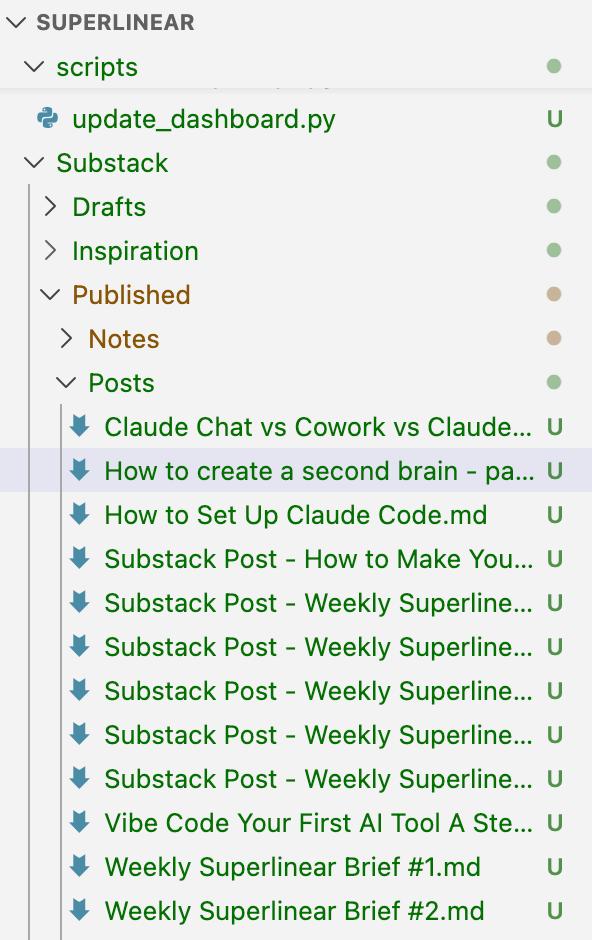
It may not be great the first few times but it is important you invest time in identifying what you don’t like. It will help you in creator an instruction manual that you can save in your Obsidian vault which has all the things you do NOT want Claude to do. Over time it will learn your preferences and the output gets closer to something you’d actually send.
That’s the basics for now. We’ll go deeper in Part 2. And as always,
Make AI do the work. Get Superlinear.
- AB and AJ